CI/CD for Databases on GitLab (Versioned Migrations)
GitLab is a popular, open-source alternative to GitHub. In addition to a self-hosted version, GitLab also offers a hosted version at gitlab.com. Similar to GitHub, GitLab offers users storage for Git repositories, issue tracking, and CI/CD pipelines.
In this guide we will demonstrate how to use GitLab CI and Atlas to setup CI pipelines for your database schema changes using the versioned migrations workflow.
Prerequisites
Installing Atlas
- macOS + Linux
- Homebrew
- Docker
- Windows
- CI
- Manual Installation
To download and install the latest release of the Atlas CLI, simply run the following in your terminal:
curl -sSf https://atlasgo.sh | sh
Get the latest release with Homebrew:
brew install ariga/tap/atlas
To pull the Atlas image and run it as a Docker container:
docker pull arigaio/atlas
docker run --rm arigaio/atlas --help
If the container needs access to the host network or a local directory, use the --net=host flag and mount the desired
directory:
docker run --rm --net=host \
  -v $(pwd)/migrations:/migrations \
  arigaio/atlas migrate apply \
  --url "mysql://root:pass@:3306/test"
Download the latest release and move the atlas binary to a file location on your system PATH.
GitHub Actions
Use the setup-atlas action to install Atlas in your GitHub Actions workflow:
- uses: ariga/setup-atlas@v0
  with:
    cloud-token: ${{ secrets.ATLAS_CLOUD_TOKEN }}
Other CI Platforms
For other CI/CD platforms, use the installation script. See the CI/CD integrations for more details.

Installation instructions can be found here.
After installing Atlas locally, you will need to log in to your organization. You can do this by running the following command:
atlas login
Creating a bot token
In order to report the results of your CI runs to Atlas Cloud, you will need to create a bot token for Atlas Cloud to use.
Follow these instructions to create a token and copy it.
Next, in your Gitlab project go to Settings -> CI/CD -> Variables and create a new variable called
ATLAS_CLOUD_TOKEN. Paste your token in the value field.
Make sure the variables are exported (the "Protect variable" checkbox is unchecked), so that they are available to all branches.
Creating a variable for your database URL
To avoid having plain-text database URLs which may contain sensitive information in your configuration files, create
another variable named DB_URL and populate it with the URL (connection string) of your database.
To learn more about formatting URLs for different databases, see the URL documentation.
Creating a Gitlab access token (optional)
Atlas will need permissions to comment lint reports on merge requests. To enable it, in your Gitlab project go to Settings -> Access Tokens. Create a new token. The role field should be set to "Reporter" or higher, and the "API" checkbox should be checked.
Copy the token, and then go to Settings -> CI/CD -> Variables and create
a new variable called GITLAB_TOKEN. Paste the token in the value field.
Offline Access
Atlas GitLab CI Components include built-in grant caching for offline continuity by storing .atlas as cache/artifacts and restoring it for subsequent runs.
No additional cache setup is required if you use the official Atlas components.
Versioned Migrations Workflow
In the versioned workflow, changes to the schema are represented by a migration directory in your codebase. Each file in this directory represents a transition to a new version of the schema.
Based on our blueprint for Modern CI/CD for Databases, our pipeline will:
- Lint new migration files whenever a merge request (MR) is opened.
- Push the migration directory to the Schema Registry when changes are merged to the mainline branch.
- Apply new migrations to our database.
Creating a simple migration directory
If you don't have a migration directory yet, create one by running the following commands:
atlas migrate new --edit
and paste the following in the editor:
-- create table "users"
CREATE TABLE users(
	id int NOT NULL,
	name varchar(100) NULL,
	PRIMARY KEY(id)
);

-- create table "blog_posts"
CREATE TABLE blog_posts(
	id int NOT NULL,
	title varchar(100) NULL,
	body text NULL,
	author_id int NULL,
	PRIMARY KEY(id),
	CONSTRAINT author_fk FOREIGN KEY(author_id) REFERENCES users(id)
);
Pushing a migration directory to Atlas Cloud
Run the following command from the parent directory of your migration directory to create a "migration directory" repo in your Atlas Cloud organization (replace "app" with the name you want to give to your new repository):
- PostgreSQL
- MySQL
- MariaDB
- SQLite
- SQL Server
- ClickHouse
$ atlas migrate push app \
  --dev-url "docker://postgres/15/dev?search_path=public"
$ atlas migrate push app \
  --dev-url "docker://mysql/8/dev"
$ atlas migrate push app \
  --dev-url "docker://mariadb/latest/dev"
$ atlas migrate push app \
  --dev-url "sqlite://dev?mode=memory"
$ atlas migrate push app \
  --dev-url "docker://sqlserver/2022-latest"
$ atlas migrate push app \
  --dev-url "docker://clickhouse/23.11"
If the migration directory contains multiple schemas, adjust the dev-url accordingly.
Atlas will print a URL leading to your migrations on Atlas Cloud. You can visit this URL to view your migrations.
Setting up GitLab CI
Create a .gitlab-ci.yml file with the following pipelines, based on the type of your database.
Remember to replace "app" with the real name of your repository.
- PostgreSQL
- MySQL
- MariaDB
- SQLite
- SQL Server
- ClickHouse
image: ubuntu:latest

services:
  - postgres:latest

variables:
  POSTGRES_DB: dev
  POSTGRES_USER: user
  POSTGRES_PASSWORD: pass

stages:
  - lint
  - push
  - apply

include:
  - component: $CI_SERVER_FQDN/arigaio/atlas/migrate-lint@~latest
    inputs:
      stage: lint
      dir: "file://migrations"
      atlas-cloud-token: $ATLAS_CLOUD_TOKEN
      dir-name: "app"
      dev-url: "postgres://user:pass@postgres/dev?sslmode=disable"

  - component: $CI_SERVER_FQDN/arigaio/atlas/migrate-push@~latest
    inputs:
      stage: push
      dir: "file://migrations"
      dir-name: "app"
      dev-url: "postgres://user:pass@postgres/dev?sslmode=disable"
      atlas-cloud-token: $ATLAS_CLOUD_TOKEN

  - component: $CI_SERVER_FQDN/arigaio/atlas/migrate-apply@~latest
    inputs:
      stage: apply
      dir: "file://migrations"
      url: $DB_URL
      revisions-schema: public
      atlas-cloud-token: $ATLAS_CLOUD_TOKEN
image: ubuntu:latest

services:
  - mysql:latest

variables:
  MYSQL_ROOT_PASSWORD: pass
  MYSQL_DATABASE: dev

stages:
  - lint
  - push
  - apply

include:
  - component: $CI_SERVER_FQDN/arigaio/atlas/migrate-lint@~latest
    inputs:
      stage: lint
      dir: "file://migrations"
      atlas-cloud-token: $ATLAS_CLOUD_TOKEN
      dir-name: "app"
      dev-url: "mysql://root:pass@mysql/dev"

  - component: $CI_SERVER_FQDN/arigaio/atlas/migrate-push@~latest
    inputs:
      stage: push
      dir: "file://migrations"
      dir-name: "app"
      dev-url: "mysql://root:pass@mysql/dev"
      atlas-cloud-token: $ATLAS_CLOUD_TOKEN

  - component: $CI_SERVER_FQDN/arigaio/atlas/migrate-apply@~latest
    inputs:
      stage: apply
      dir: "file://migrations"
      url: $DB_URL
      atlas-cloud-token: $ATLAS_CLOUD_TOKEN
image: ubuntu:latest

services:
  - mariadb:latest

variables:
  MYSQL_ROOT_PASSWORD: pass
  MYSQL_DATABASE: dev

stages:
  - lint
  - push
  - apply

include:
  - component: $CI_SERVER_FQDN/arigaio/atlas/migrate-lint@~latest
    inputs:
      stage: lint
      dir: "file://migrations"
      atlas-cloud-token: $ATLAS_CLOUD_TOKEN
      dir-name: "app"
      dev-url: "maria://root:pass@mariadb/dev"

  - component: $CI_SERVER_FQDN/arigaio/atlas/migrate-push@~latest
    inputs:
      stage: push
      dir: "file://migrations"
      dir-name: "app"
      dev-url: "maria://root:pass@mariadb/dev"
      atlas-cloud-token: $ATLAS_CLOUD_TOKEN

  - component: $CI_SERVER_FQDN/arigaio/atlas/migrate-apply@~latest
    inputs:
      stage: apply
      dir: "file://migrations"
      url: $DB_URL
      atlas-cloud-token: $ATLAS_CLOUD_TOKEN
image: ubuntu:latest

stages:
  - lint
  - push
  - apply

include:
  - component: $CI_SERVER_FQDN/arigaio/atlas/migrate-lint@~latest
    inputs:
      stage: lint
      dir: "file://migrations"
      atlas-cloud-token: $ATLAS_CLOUD_TOKEN
      dir-name: "app"
      dev-url: "sqlite://db?mode=memory"

  - component: $CI_SERVER_FQDN/arigaio/atlas/migrate-push@~latest
    inputs:
      stage: push
      dir: "file://migrations"
      dir-name: "app"
      dev-url: "sqlite://db?mode=memory"
      atlas-cloud-token: $ATLAS_CLOUD_TOKEN

  - component: $CI_SERVER_FQDN/arigaio/atlas/migrate-apply@~latest
    inputs:
      stage: apply
      dir: "file://migrations"
      url: $DB_URL
      atlas-cloud-token: $ATLAS_CLOUD_TOKEN
image: ubuntu:latest

services:
  - name: mcr.microsoft.com/mssql/server:2022-latest
    alias: sqlserver

variables:
    ACCEPT_EULA: Y
    MSSQL_PID: Developer
    MSSQL_SA_PASSWORD: P@ssw0rd0995

stages:
  - lint
  - push
  - apply

include:
  - component: $CI_SERVER_FQDN/arigaio/atlas/migrate-lint@~latest
    inputs:
      stage: lint
      dir: "file://migrations"
      atlas-cloud-token: $ATLAS_CLOUD_TOKEN
      dir-name: "app"
      dev-url: sqlserver://sa:P@ssw0rd0995@sqlserver:1433?database=master

  - component: $CI_SERVER_FQDN/arigaio/atlas/migrate-push@~latest
    inputs:
      stage: push
      dir: "file://migrations"
      dir-name: "app"
      dev-url: sqlserver://sa:P@ssw0rd0995@sqlserver:1433?database=master
      atlas-cloud-token: $ATLAS_CLOUD_TOKEN

  - component: $CI_SERVER_FQDN/arigaio/atlas/migrate-apply@~latest
    inputs:
      stage: apply
      dir: "file://migrations"
      url: $DB_URL
      atlas-cloud-token: $ATLAS_CLOUD_TOKEN
image: ubuntu:latest

services:
  - name: clickhouse/clickhouse-server:23.10
    alias: clickhouse

variables:
  CLICKHOUSE_DB: dev
  CLICKHOUSE_DEFAULT_ACCESS_MANAGEMENT: 1
  CLICKHOUSE_PASSWORD: pass
  CLICKHOUSE_USER: root

stages:
  - lint
  - push
  - apply

include:
  - component: $CI_SERVER_FQDN/arigaio/atlas/migrate-lint@~latest
    inputs:
      stage: lint
      dir: "file://migrations"
      atlas-cloud-token: $ATLAS_CLOUD_TOKEN
      dir-name: "app"
      dev-url: clickhouse://root:pass@localhost:9000/dev

  - component: $CI_SERVER_FQDN/arigaio/atlas/migrate-push@~latest
    inputs:
      stage: push
      dir: "file://migrations"
      dir-name: "app"
      dev-url: clickhouse://root:pass@localhost:9000/dev
      atlas-cloud-token: $ATLAS_CLOUD_TOKEN

  - component: $CI_SERVER_FQDN/arigaio/atlas/migrate-apply@~latest
    inputs:
      stage: apply
      dir: "file://migrations"
      url: $DB_URL
      atlas-cloud-token: $ATLAS_CLOUD_TOKEN
Let's break down what this file is doing:
- The
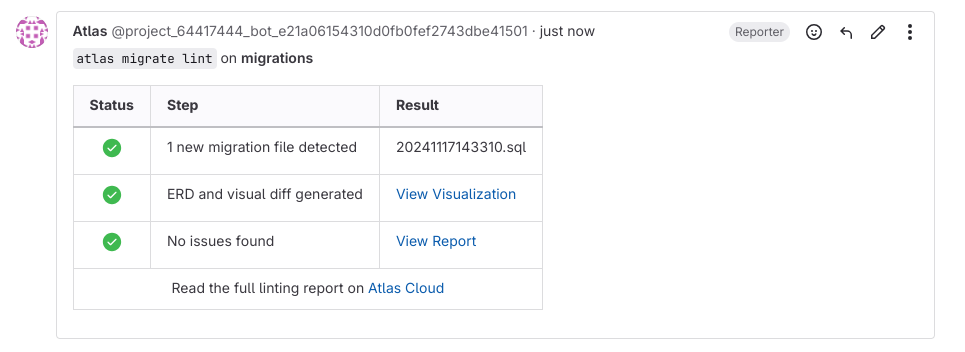
migrate-lintcomponent will run on every new merge request. If new migrations are detected, Atlas will lint them and post the report as a merge request comment like this:
- After the merge request is merged into to main branch, the
migrate-pushcomponent will push the new state of the schema to the Schema Registry on Atlas Cloud. - Then, the
migrate-applycomponent will deploy the new migrations to your database.
Testing our pipeline
Let's take our pipeline for a spin:
- Locally, create a new branch and add a new migration with
atlas migrate new --edit. Paste the following in th editor:
CREATE TABLE `test` (`c1` INT)
- Commit and push the changes.
- In Gitlab, open a merge request.
- View the lint report generated by Atlas. Follow the links to see the changes visually on Atlas Cloud.
- Merge the MR.
- When the pipeline is finished running, check your database to see if the changes were applied.
Wrapping up
In this guide, we demonstrated how to use GitLab CI/CD with Atlas to set up a modern CI/CD pipeline for versioned database migrations. Here's what we accomplished:
- Automated migration linting on every pull request to catch issues early
- Centralized migration management by pushing to Atlas Cloud's Schema Registry
- Automated deployments to your target database when changes are merged
For more information on the versioned workflow, see the Versioned Migrations documentation.
Next steps
- Learn about Atlas Cloud for enhanced collaboration
- Explore migration testing to validate your migrations
- Read about declarative migrations as an alternative workflow
- Check out the GitLab CI/CD reference for all available actions