Automatic Schema Migrations for Azure HorizonDB with Atlas
HorizonDB is Azure's PostgreSQL-compatible database service for cloud-native applications. It looks and acts exactly like standard PostgreSQL on the outside, but instead of tying computer power and storage data files together on one server, it separates them so your database can handle heavy traffic without slowing down. It also features built-in, advanced AI vector tools and can spin up extra reading nodes in seconds without copying any underlying data. Essentially, you get the familiar coding language of regular PostgreSQL backed by the speed and flexibility of a modern cloud network.
However, HorizonDB is still a database, and managing its schema can be challenging due to the complexity of related data structures and the need for coordinated schema changes across teams and applications.
Enter: Atlas
Atlas helps developers manage their database schema as code - abstracting away the intricacies of database schema management. With Atlas, users provide the desired state of the database schema and Atlas automatically plans the required migrations.
In this guide, we will dive into setting up Atlas for HorizonDB schema migrations, and introduce the different workflows available.
Prerequisites
- Docker
- Access to a HorizonDB Azure-hosted PostgreSQL server
- Atlas installed on your machine:
- macOS + Linux
- Homebrew
- Docker
- Windows
- CI
- Manual Installation
To download and install the latest release of the Atlas CLI, simply run the following in your terminal:
curl -sSf https://atlasgo.sh | sh
Get the latest release with Homebrew:
brew install ariga/tap/atlas
To pull the Atlas image and run it as a Docker container:
docker pull arigaio/atlas
docker run --rm arigaio/atlas --help
If the container needs access to the host network or a local directory, use the --net=host flag and mount the desired
directory:
docker run --rm --net=host \
  -v $(pwd)/migrations:/migrations \
  arigaio/atlas migrate apply \
  --url "mysql://root:pass@:3306/test"
Download the latest release and move the atlas binary to a file location on your system PATH.
GitHub Actions
Use the setup-atlas action to install Atlas in your GitHub Actions workflow:
- uses: ariga/setup-atlas@v0
  with:
    cloud-token: ${{ secrets.ATLAS_CLOUD_TOKEN }}
Other CI Platforms
For other CI/CD platforms, use the installation script. See the CI/CD integrations for more details.

psql, if you want to create the target database from the shell
Logging in to Atlas
HorizonDB is only available on the Pro plan or during a Trial. Upgrade your plan to get started.
To use HorizonDB with Atlas, you'll need to log in to Atlas. If it's your first time, you will be prompted to create both an account and a workspace (organization):
- Via Web
- Via Token
- Via Environment Variable
atlas login
atlas login --token "ATLAS_TOKEN"
ATLAS_TOKEN="ATLAS_TOKEN" atlas login
Connecting to HorizonDB
Atlas connects to an existing HorizonDB server and database. If you still need to provision the HorizonDB instance, start with Microsoft's official guide: Quickstart: Create an Azure HorizonDB cluster.
Provision the database once with infrastructure tooling, a Terraform resource, a Helm init job, or plain SQL:
CREATE DATABASE app;
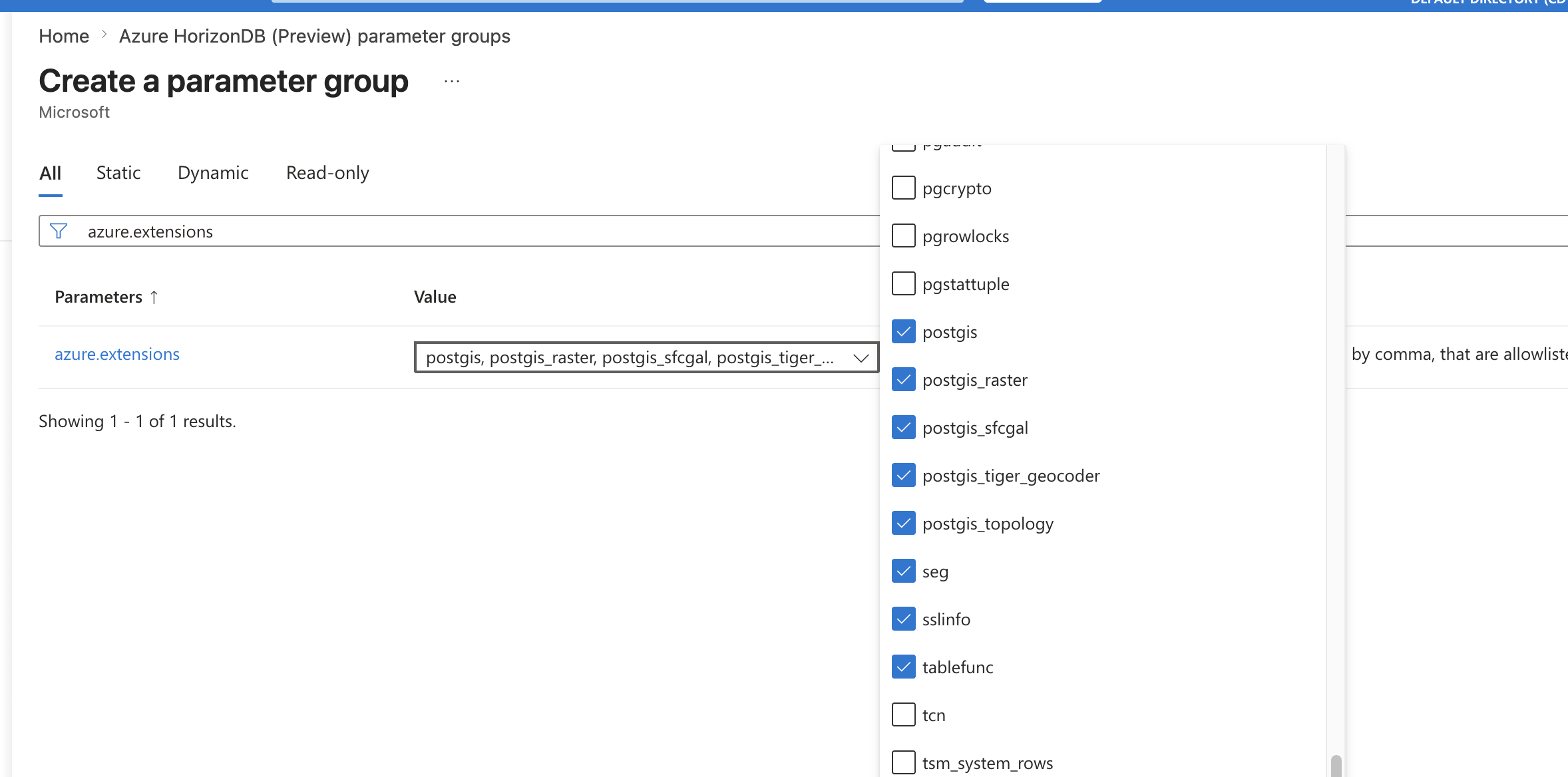
Before Atlas can manage PostgreSQL extensions, they must be allowlisted on your HorizonDB server.
In the Azure portal, open your server, go to Settings > Parameters, add the extension name (for example,
uuid-ossp or vector) to azure.extensions, and save.
Once the server and database are ready, connect with the standard HorizonDB horizondb:// scheme:
horizondb://<user>:<password>@<host>:5432/<database>?sslmode=require
Example:
horizondb://myuser:mypassword@my-server.postgres.database.azure.com:5432/app?sslmode=require
- HorizonDB requires SSL connections (
sslmode=require) - The default port is
5432 - Azure PostgreSQL usernames are often formatted as
user@server-name
Inspecting the Schema
The atlas schema inspect command supports reading the database description provided by a URL and outputting it in
different formats, including Atlas DDL (default), SQL, and JSON. In this guide, we will
demonstrate the flow using both the Atlas DDL and SQL formats.
- Atlas DDL (HCL)
- SQL
To inspect your HorizonDB database, use the -u flag and write the output to a file named schema.hcl:
atlas schema inspect \
  -u "horizondb://user:pass@host.postgres.database.azure.com:5432/app?sslmode=require" > schema.hcl
Open the schema.hcl file to view the Atlas schema that describes your database.
schema "public" {
  comment = "standard public schema"
}

extension "uuid-ossp" {
  schema = schema.public
}

table "users" {
  schema = schema.public
  column "id" {
    null    = false
    type    = uuid
    default = sql("public.uuid_generate_v4()")
  }
  column "name" {
    null = false
    type = text
  }
  primary_key {
    columns = [column.id]
  }
}
To inspect your HorizonDB database, use the -u flag and write the output to a file named schema.sql:
atlas schema inspect \
  -u "horizondb://user:pass@host.postgres.database.azure.com:5432/app?sslmode=require" \
  --format '{{ sql . }}' > schema.sql
Open the schema.sql file to view the inspected SQL schema that describes your database.
-- Create extension "uuid-ossp"
CREATE EXTENSION "uuid-ossp" WITH SCHEMA "public" VERSION "1.1";
-- Create "users" table
CREATE TABLE "users" (
  "id" uuid NOT NULL DEFAULT public.uuid_generate_v4(),
  "name" text NOT NULL,
  PRIMARY KEY ("id")
);
For in-depth details on the atlas schema inspect command, covering aspects like inspecting specific schemas,
handling multiple schemas concurrently, excluding tables, and more, refer to Export Database to Code.
Dev Database
Atlas uses a dev database in both the declarative and versioned workflows to normalize schemas, validate them, and simulate migrations. This ephemeral database allows Atlas to detect errors early and generate accurate migration plans.
To simplify the process of creating temporary databases for one-time use, Atlas can spin up an ephemeral local Docker container using the special docker driver, and clean it up at the end of the process. For example:
# Standard PostgreSQL dev database (e.g. uuid-ossp).
--dev-url "docker://postgres/17/dev"

# pgvector dev database (e.g. vector extension).
--dev-url "docker://pgvector/pg17/dev"
Note that in PostgreSQL, extensions are installed on the server, and only those whose versions exist on the server can be installed on databases. To ensure correct matching between your HorizonDB database and your local dev database, make sure you use the same Postgres image (in your Docker database) and the same extension versions used by your HorizonDB instance. For the full list of supported extensions by PostgreSQL version, see: https://learn.microsoft.com/en-us/azure/horizondb/extensions/concepts-extensions-versions
Declarative Migrations
The declarative approach, sometimes called "state-based migrations", lets users manage schemas by defining the desired state of the database as code. Atlas then inspects the target database and calculates an execution plan to reconcile the difference between the desired and actual states. Let's see this in action.
We will start off by making a change to our schema file, such as adding a repos table:
- Atlas DDL (HCL)
- SQL
schema "public" {
  comment = "standard public schema"
}

extension "uuid-ossp" {
  schema = schema.public
}

table "users" {
  schema = schema.public
  column "id" {
    null    = false
    type    = uuid
    default = sql("public.uuid_generate_v4()")
  }
  column "name" {
    null = false
    type = text
  }
  primary_key {
    columns = [column.id]
  }
}
table "repos" {
  schema = schema.public
  column "id" {
    null    = false
    type    = uuid
    default = sql("public.uuid_generate_v4()")
  }
  column "name" {
    null = false
    type = text
  }
  column "owner_id" {
    null = false
    type = uuid
  }
  primary_key {
    columns = [column.id]
  }
}
-- Create extension "uuid-ossp"
CREATE EXTENSION IF NOT EXISTS "uuid-ossp";

-- Create "users" table
CREATE TABLE "users" (
  "id" uuid NOT NULL DEFAULT public.uuid_generate_v4(),
  "name" text NOT NULL,
  PRIMARY KEY ("id")
);

-- Create "repos" table
CREATE TABLE "repos" (
  "id" uuid NOT NULL DEFAULT public.uuid_generate_v4(),
  "name" text NOT NULL,
  "owner_id" uuid NOT NULL,
  PRIMARY KEY ("id")
);
Now that our desired state has changed, Atlas will plan a migration for us with atlas schema apply.
The command takes the following parameters:
-u: the URL of the target database to update.--to: the URL of the desired state. This can be an HCL or SQL schema file (file://schema.hcl,file://schema.sql), a live database URL, or a schema pushed to Atlas Cloud (atlas://app).--dev-url: a URL to a Dev Database used to validate our schema and simulate the migration before it runs on HorizonDB.
Since the schema includes an extension, pass a database-scoped dev URL (without search_path)
so Atlas can plan extension statements correctly.
- Atlas DDL (HCL)
- SQL
atlas schema apply \
  -u "horizondb://user:pass@host.postgres.database.azure.com:5432/app?sslmode=require" \
  --to file://schema.hcl \
  --dev-url "docker://postgres/17/dev"
atlas schema apply \
  -u "horizondb://user:pass@host.postgres.database.azure.com:5432/app?sslmode=require" \
  --to file://schema.sql \
  --dev-url "docker://postgres/17/dev"
Approve the proposed changes, and that's it! You have successfully run a declarative migration.
Applying approved migration (1 statement in total):

  -- create "repos" table
    -> CREATE TABLE "public"."repos" (
         "id" uuid NOT NULL DEFAULT public.uuid_generate_v4(),
         "name" text NOT NULL,
         "owner_id" uuid NOT NULL,
         PRIMARY KEY ("id")
       );
  -- ok (2.804875ms)

  -------------------------
  -- 2.872625ms
  -- 1 migration
  -- 1 sql statement
Pushing schemas to Atlas Registry
Similar to how Docker images are pushed to Docker Hub, you can push your schema to Atlas Cloud for versioning, collaboration, and deployment:
atlas schema push app \
  --url "file://schema.hcl" \
  --dev-url "docker://postgres/17/dev"
Once pushed, Atlas prints a URL to the schema. You can then apply it to any database using the schema URL in --to:
atlas schema apply \
  -u "horizondb://user:pass@host.postgres.database.azure.com:5432/app?sslmode=require" \
  --to "atlas://app" \
  --dev-url "docker://postgres/17/dev"
This workflow allows you to manage your schema centrally and deploy it to multiple environments without having the schema files locally.
For more advanced workflows, you can use atlas schema plan to pre-plan and review migrations
before applying them. This enables teams to plan, lint, and review changes during the PR stage, edit generated
SQL if needed, and ensure no human intervention is required during deployment.
Versioned Migrations
Alternatively, the versioned migration workflow, sometimes called "change-based migrations", allows each change to the database schema to be checked-in to source control and reviewed during code-review. Users can still benefit from Atlas intelligently planning migrations for them, however they are not automatically applied.
Creating the first migration
In the versioned migration workflow, our database state is managed by a migration directory. The migration directory holds all of the migration files created by Atlas, and the sum of all files in lexicographical order represents the current state of the database.
To create our first migration file, we will run the atlas migrate diff command against the desired schema
(for example, the updated schema.hcl or schema.sql) with these parameters:
--dir: the URL to the migration directory, by default it is file://migrations.--to: the URL of the desired state. A state can be specified using a database URL, HCL or SQL schema, or another migration directory.--dev-url: a URL to a Dev Database that will be used to compute the diff.
- Atlas DDL (HCL)
- SQL
atlas migrate diff initial \
  --to file://schema.hcl \
  --dev-url "docker://postgres/17/dev"
atlas migrate diff initial \
  --to file://schema.sql \
  --dev-url "docker://postgres/17/dev"
Run ls migrations, and you'll notice that Atlas has automatically created a migration directory for us with
two files: 20260608093626_init.sql and atlas.sum.
Our migration file, 20260608093626_init.sql, contains the following:
-- Create extension "uuid-ossp"
CREATE EXTENSION "uuid-ossp" WITH SCHEMA "public" VERSION "1.1";
-- Create "users" table
CREATE TABLE "public"."users" (
  "id" uuid NOT NULL DEFAULT public.uuid_generate_v4(),
  "name" text NOT NULL,
  PRIMARY KEY ("id")
);
-- Create "repos" table
CREATE TABLE "public"."repos" (
  "id" uuid NOT NULL DEFAULT public.uuid_generate_v4(),
  "name" text NOT NULL,
  "owner_id" uuid NOT NULL,
  PRIMARY KEY ("id")
);
The sum file is used by Atlas to maintain the integrity of the migration directory. To learn more about the sum file, read the documentation.
Pushing migration directories to Atlas
Now that we have our first migration, we can apply it to a database. There are multiple ways to accomplish this, with most methods covered in the guides section. In this example, we'll demonstrate how to push migrations to Atlas Cloud.
Let's name our new migration project app and run atlas migrate push:
atlas migrate push app \
  --dev-url "docker://postgres/17/dev"
Once the migration directory is pushed, Atlas prints a URL to the created directory.
Applying migrations
Once our app migration directory has been pushed, we can apply it to a database from any CD platform without
necessarily having our directory there.
We'll create a simple Atlas configuration file (atlas.hcl) to store the settings for our environment:
variable "horizondb_url" {
  type    = string
  default = getenv("DATABASE_URL")
}

env "horizondb" {
  url = var.horizondb_url
  dev = "docker://postgres/17/dev"
  migration {
    dir = "atlas://app"
  }
}
The final step is to apply the migrations to the database. Let's run atlas migrate apply with the --env flag
to instruct Atlas to select the environment configuration from the atlas.hcl file:
atlas migrate apply --env horizondb
After applying the migration, you should receive a link to the deployment and the database where the migration was applied.
Next Step: Setup CI/CD
Once you have your migration directory set up, the next step is to integrate Atlas into your CI/CD pipeline. Atlas provides native integrations for popular platforms:
 GitHub Actions
 GitLab CI
 Bitbucket Pipelines
 Azure DevOps
 Terraform Provider
 Kubernetes Operator
Wrapping Up
In this guide, we demonstrated how to set up Atlas to manage your HorizonDB database schema. We covered both declarative and versioned migration workflows, and showed how to generate migrations, push them to an Atlas workspace, and apply them to your databases. Atlas has many more features to explore. To learn more, check out the Atlas documentation.